Garage Buddy runs on iPhone, iPad and Mac, and
in a web browser. Almost everything
works with no account and no network. A few features use AI with an API key
you supply yourself; those are marked AI key, and the
app works fine without them.
The first screen asks where your data should live:
On this device — no account, no sign-up, works
offline. Included in your normal iPhone backup.
Google Drive — sign in with Google and the app keeps
your records in a spreadsheet in your own Drive, which also lets your
iPhone, iPad and Mac share one garage.
Then add your cars. Only a name is required, but each car can hold:
Year, make, model, colour, licence plate and VIN
Starting mileage — the odometer reading when you got
the car. This matters for used cars, since miles are counted from here.
Date acquired and purchase price
A reference photo of the dashboard or interior, which
helps AI scans work out which car a photo belongs to
Your own estimate of what it's worth (see Garage
value)
Logging an entry
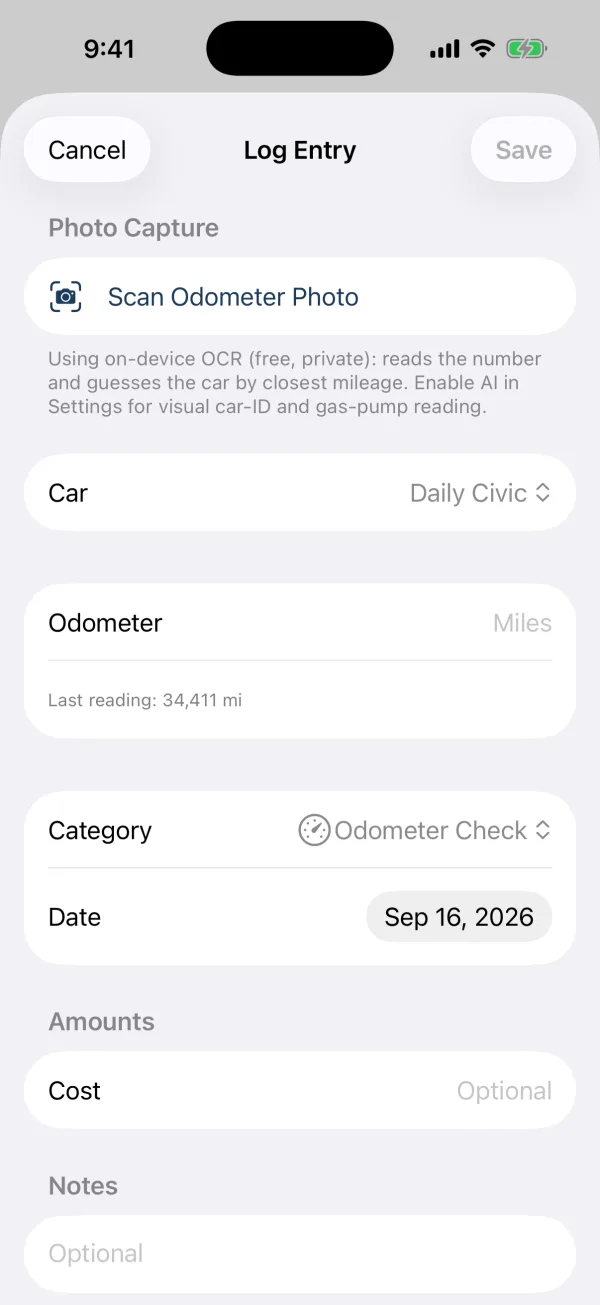
Every entry records a car, a date and an odometer reading, plus a
category:
Odometer Check — just the mileage
Gas — with cost and gallons (or litres)
Charging — with cost and kWh
Maintenance, Repair,
Insurance, Registration and
Other — with cost
Any entry can also carry notes and attachments: a photo, a PDF, or a
multi-page document scan saved as one PDF.
Logging an entry
Checks as you type
The last reading for the car is shown under the odometer field. Enter a
lower number and the app asks you to double-check it.
For gas and charging entries there is a “Missed a fill-up before
this” switch. Turn it on when fuel went in that you didn't log —
someone else filled up, or you lost the receipt — and that gap is left out
of the economy figures instead of producing a wildly wrong MPG. A fuel entry
with a cost but no gallons or kWh is treated the same way, switch or
not.
Home Screen quick actions: press and hold the app icon for
Scan Odometer or Log Entry
The Scan Odometer widget
Retired cars drop out of the car picker so the list stays short.
Photo scanning
Odometer and gas pump
On the entry screen, tap Scan Odometer Photo (or
Scan Gas Pump on a gas entry) and take or choose a photo.
Usually the number is filled in for you to check before saving — but not
always, and the exception matters more than the rule. See
below.
You don't have to frame the shot carefully. Before sending an odometer
photo, the app finds the numbers on your dashboard and zooms to them, at full
camera resolution. That sounds cosmetic and isn't: a dashboard photo puts the
instrument cluster in perhaps a quarter of the frame, and once the picture was
shrunk for upload the digits were only about twenty pixels tall — too small to
read reliably. On test photos framed the way people actually hold a phone,
zooming first took the reading from wrong every time to right every time.
On-device (the default) uses Apple's built-in text
recognition. It's free, works with no signal, and the photo never leaves
your phone. It also picks the car whose last reading is closest to, and just
below, the number it read — a scan of 52,550 goes to the car last seen at
52,500, not the one at 10,000.
AIAI key handles harder
photos: glare, odd angles, and the seven-segment digital displays that trip
up ordinary text recognition. It identifies the car from your reference
photos, the dashboard style and whether the mileage is plausible. The
on-device reader runs alongside as a cross-check.
When it won't fill the number in
A wrong odometer reading is worth being careful about: every mileage, MPG
and cost-per-mile figure in the app is worked out from these readings, and once
a wrong one is saved there is no way to tell later which entry it was. So the
app distinguishes two different kinds of doubt.
Something contradicts the reading — the AI's own
digit-by-digit transcription doesn't match the number it reported, or the
reading has fewer digits than your last one (an odometer can't lose a digit).
The app tells you what it read and leaves the field for you, because
a number it has reason to doubt is worse than no number.
The two readers simply disagree. The field is filled in
and the app shows you what on-device recognition made of it. That's a
prompt to glance at your dashboard, not a reason to withhold the reading —
on-device text recognition is the weaker of the two, so letting it veto the
AI meant retyping perfectly good numbers.
Helping it get better optional
Settings → Improve Odometer Scanning is off by default.
Turn it on and each odometer photo you scan is kept — in a
Scan Review folder in your own Google Drive, or on the device
if that's where your data lives — along with what the app read and what you
actually saved.
It keeps the ones it got right as well as the ones you corrected.
That sounds like clutter and isn't: without the correct ones, a change to the
scanning can look like an improvement while quietly breaking what already
worked. The photos go nowhere else, and you can delete the folder — or use
Delete kept photos on the device — whenever you like.
Receipts
Scan a receipt with the multi-page document scanner, or attach a photo or
PDF you already have. AI key With AI set up, the app
reads it and fills in the total, the date and the category, and writes a short
summary into the notes. A PDF receipt is read the same way as a photographed
one.
The dashboard
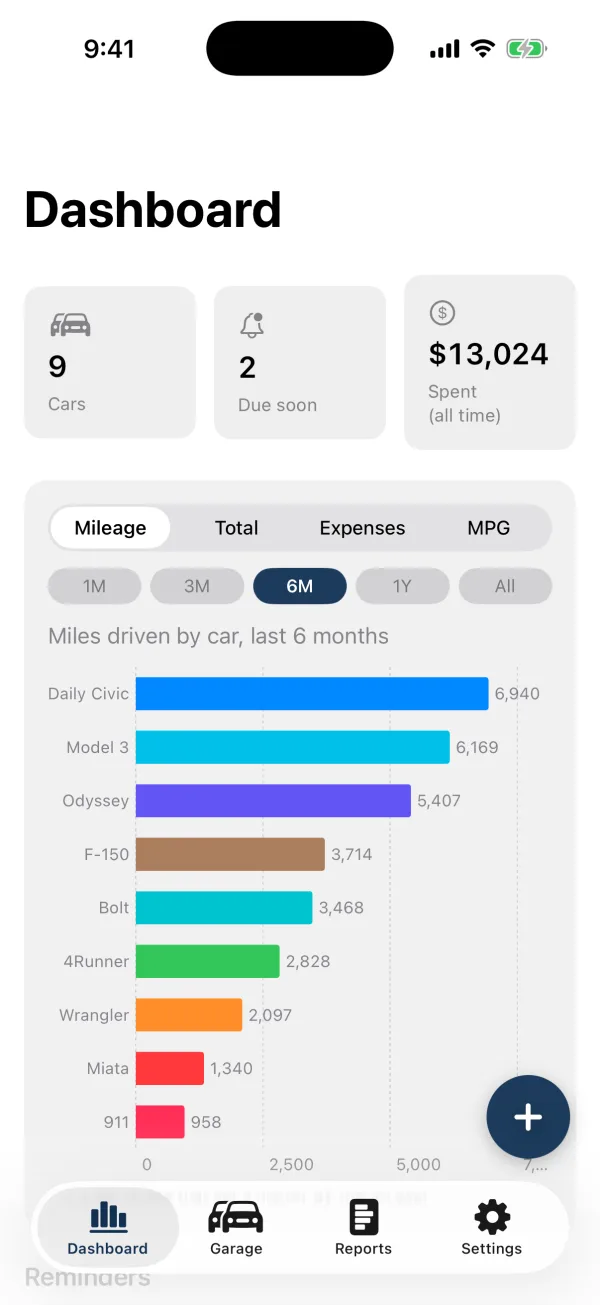
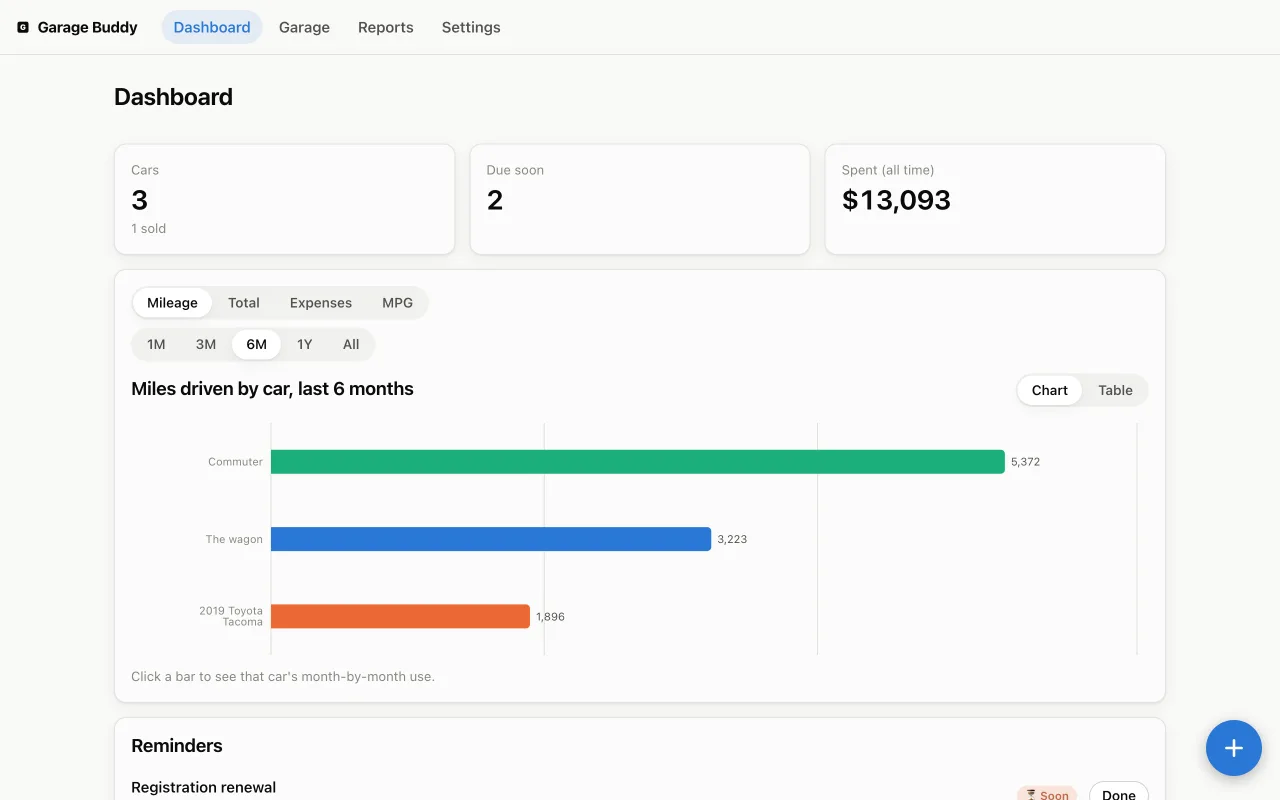
The Dashboard is the first tab. At the top are fleet totals, including
Spent (all time). Below them is a chart with four views —
tap a tab or swipe left and right to switch:
Mileage — one bar per car, the miles driven in the
selected range, so the longest bar is the car you use most. Tap a bar to see
that car month by month.
Total — every car's miles added together, one bar per
month.
Expenses — one bar per car, what it cost you in the
range. Tap a bar for that car's spending by month.
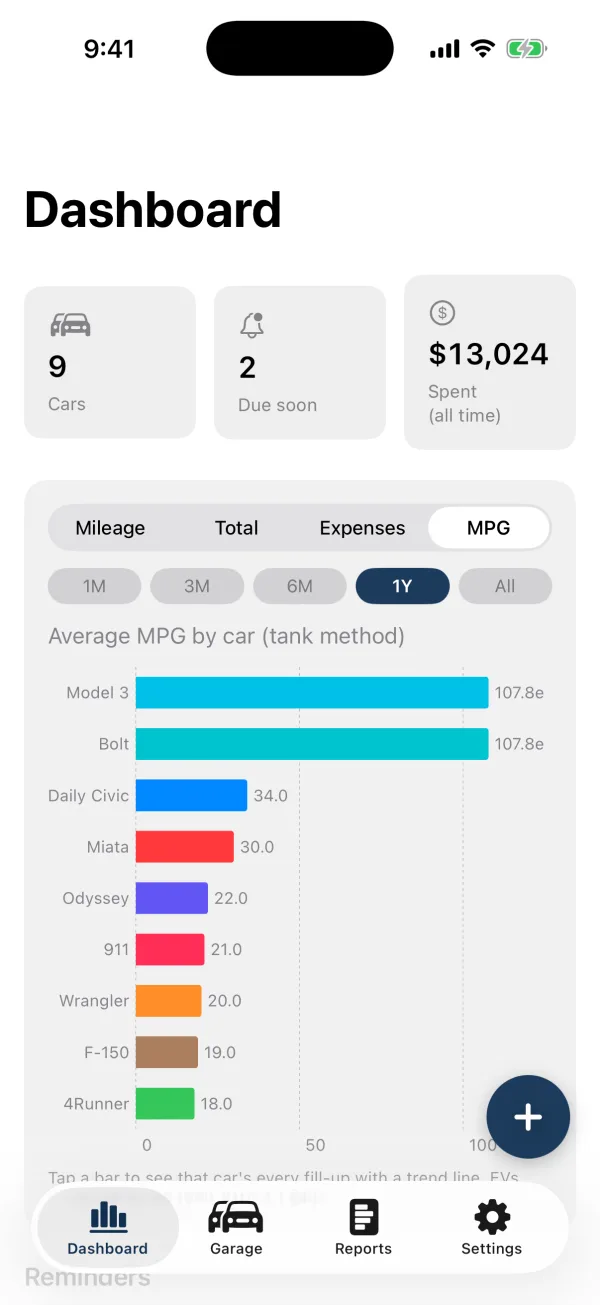
Economy — one bar per car. Tap for that car's
individual fill-ups.
Dashboard: miles driven, by car
Economy, gas and electric together
The range buttons — 1M, 3M, 6M, 1Y, All — change the window
for every chart. After tapping into one car, All cars next to
the chart title takes you back.
Months with no reading yet are drawn as faded bars, projected from recent
use. When a car is left off a chart — nothing logged in the range, or too few
fill-ups — the chart says how many are missing and why, so a missing bar is
never a mystery.
Under the chart are upcoming Reminders, which you can mark
done from there, and Recent Activity.
The garage and each car
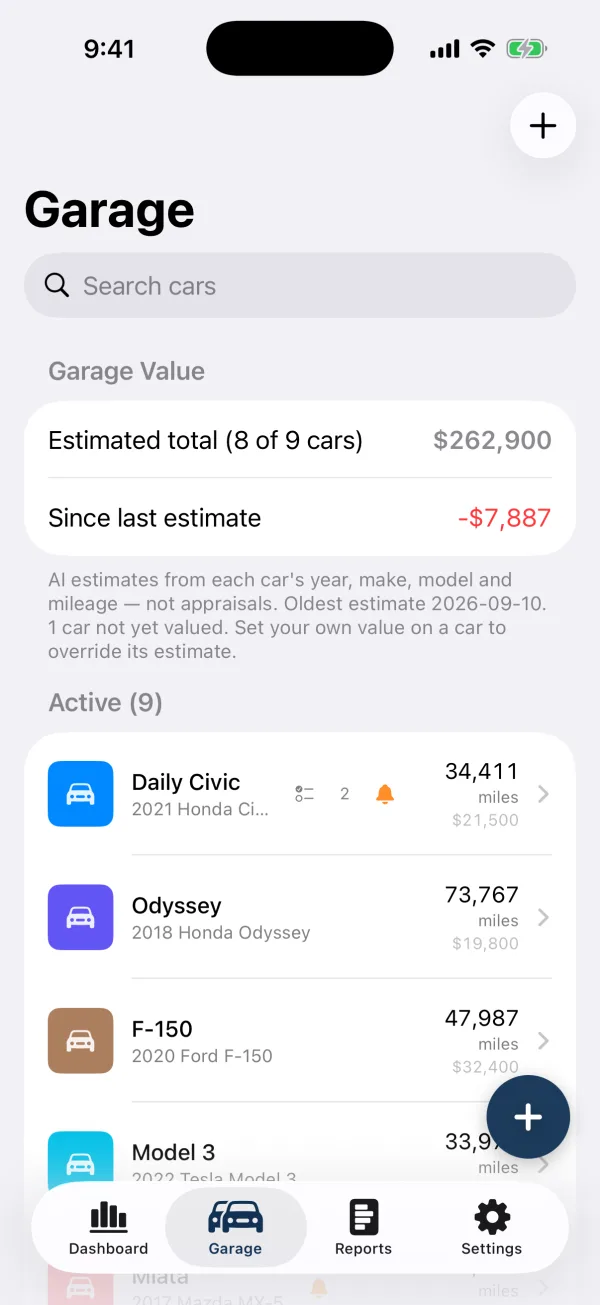
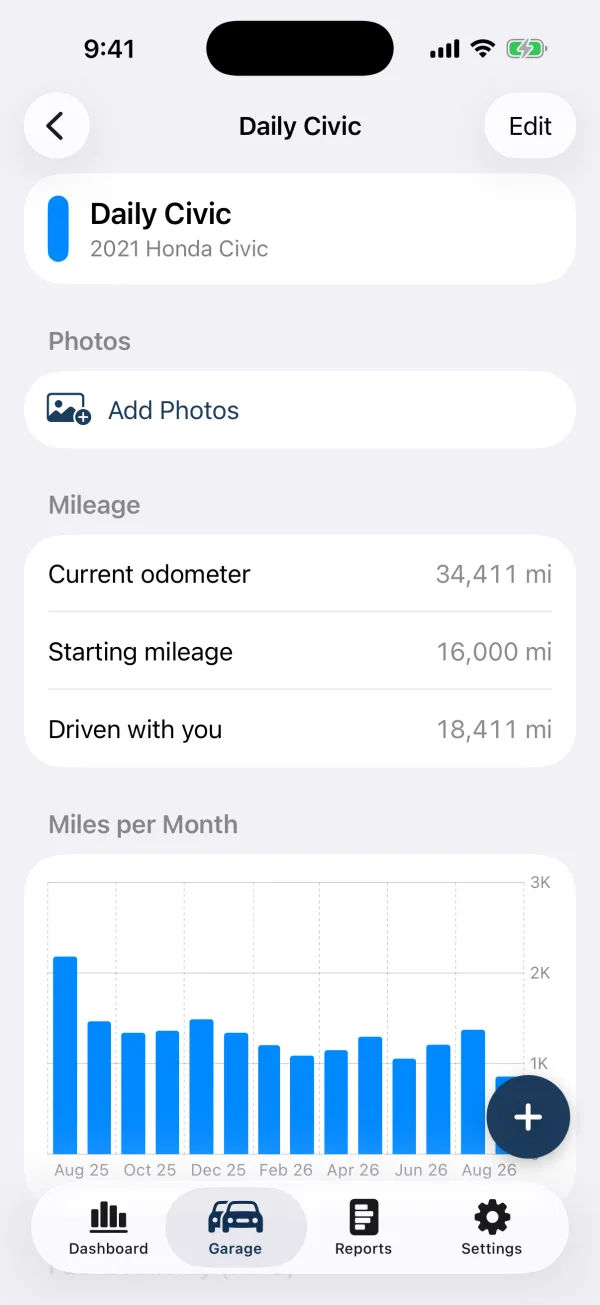
The Garage tab lists your cars in two groups, Active and Retired. Each row
shows the car's photo, current mileage and small badges:
A bell when a reminder is due soon, and a bell with a
badge when one is overdue
A checklist icon with the number of open to-dos
A warning icon for something that looks wrong in the log: an odometer
reading that went backwards, a drop in fuel economy, an unusually large
cost, or no entry for a long time
The car's estimated value, if you use Garage
value
The garage
One car's page
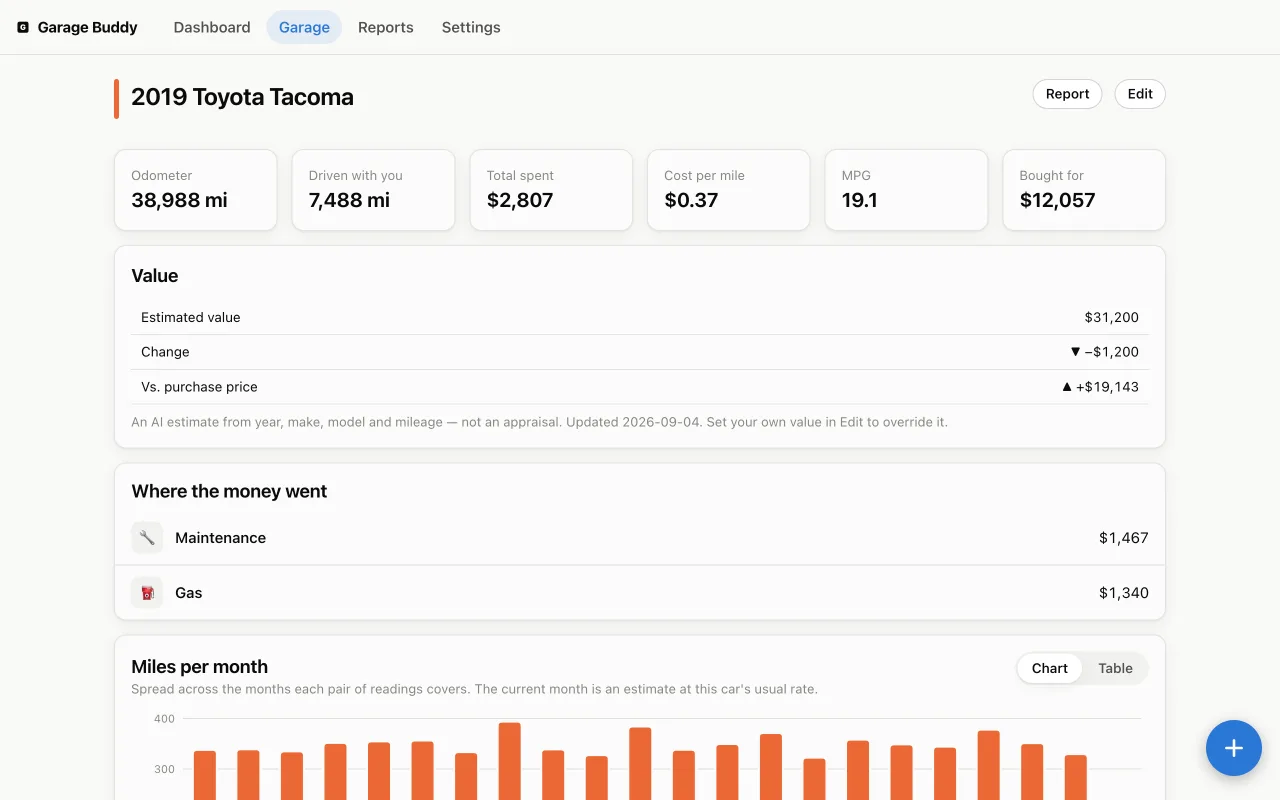
Tap a car to open its page, which has these sections:
Photos — the car's album, with one picture chosen as
the cover
Mileage and a miles-per-month
chart
Fuel Economy or Efficiency for
electric cars — see below
Details — year, make, model, plate, VIN and so on
Reminders and To-Do
Value, and Purchase & Sale with
the profit or loss once it's sold
Costs — cost per mile, total spent, and a breakdown by
category
Documents, including a separate Previous
Owner group
History — every entry, filterable by category
Selling or retiring a car
Retire (Sold) Car asks for the sale price and date and
shows the profit against what you paid. Leave the price blank if it wasn't
sold. A retired car keeps its full history and still appears in charts and
reports; it just leaves the quick-entry picker. Reactivate
Car brings it back.
Fuel economy, gas and electric
Per fill-up economy. Each bar is one tank, measured
from the previous fill-up. A line shows the moving average over the last
five, so a trend stands out from one odd tank.
Spaced by fill-up, not by date. Fill-ups aren't evenly
spaced in time — a fortnight of commuting, then six weeks parked — and on a
date axis those gaps dominated the chart while consecutive tanks were
squeezed together. Economy is a property of a tank rather than of a week, so
every fill gets an equal slot, oldest first, and the labels along the bottom
still tell you when each one happened. (Two fill-ups on the same day are
both visible now, too. On the old axis the second one was drawn underneath
the first.)
An impossible figure is left out. A mistyped odometer
reading or a partial fill logged as a full one can produce a tank that reads
as 400 MPG. Those are ignored — by the chart and by the average on
the Dashboard, from the same threshold. They used to be ignored by only the
chart, which meant a bad entry vanished from the picture while still dragging
the headline number.
Electric cars log Charging entries with kWh.
Their page shows miles per kWh per charge, with the same five-charge
average.
One fleet chart for both. On the Dashboard, electric
cars are converted to MPGe using the EPA's figure of 33.7 kWh per gallon,
so a hybrid, a V8 and an EV sit on one scale.
A car needs at least two gas entries with gallons, or two charging entries
with kWh, before it has an economy figure.
The average is total miles divided by total gallons, not the average of each
tank's figure. A one-gallon top-up therefore counts for one gallon rather than
as an equal vote — its odometer gap is short, so a rounding error in it would
otherwise swing the whole number.
Reminders and to-dos
Reminders
By date — registration, insurance, inspection. You get
a notification at 9am on the day it's due.
By mileage — oil changes, tyre rotations. Checked
against the car's latest reading.
One-off or repeating — every N months, or every N
miles.
A reminder is marked Soon within 30 days or 500 miles, and
Overdue after that. Marking a repeating reminder done moves it
to the next due date or mileage that is still ahead of you, so catching up on
an overdue one doesn't leave it overdue again.
Suggested service intervals AI key
On a car's page, Suggest Service Intervals asks the AI for
that car's maintenance schedule. You get a list to review: untick anything you
don't want, and suggestions that match reminders you already have start
unticked. Nothing is added until you tap Add.
To-dos
For things you noticed and don't want to forget — a squeak to look at, a
bulb to replace. No due date and no notification, just a list per car to tick
off. The open count shows on the car's row in the Garage.
Documents and photos
Car documents
Titles, registrations, insurance cards and anything else that belongs to the
car rather than to one entry. Add one by scanning (multi-page), taking a photo,
or choosing a photo or PDF. From a document's menu you can rename, share, open
it in Drive, or delete it.
Automatic namingAI key —
the app reads a new document and suggests a name for it.
Extract DetailsAI key —
reads the VIN, licence plate, insurance policy and expiry date off the
document and offers to update the car and create a renewal reminder. You see
exactly what will change, including any value it would replace, before
anything is applied.
Previous owner records. Mark a document as coming from
before you owned the car — old service invoices, an inspection report, the
bill of sale. It's kept under Previous Owner as the car's history,
is never counted as your mileage, and is included in the vehicle-history
packet.
Photo album
Each car has its own album. Add pictures from the camera, your library, or
the clipboard, and choose which one is the cover shown in the
Garage list and at the top of the car's page.
Undo
Deleting a document, report or album photo removes it straight away and
shows an Undo button for 8 seconds. The file is only deleted
once that time runs out.
Garage value AI key
Garage Buddy can estimate what each car is worth from its year, make, model,
colour and mileage. Tap Estimate Values in the Garage for the
whole fleet, or Estimate Value on one car.
The Garage shows an estimated total, how many cars it
covers (“8 of 9 cars”), and the change since the last estimate.
Enter your own figure on any car and it replaces the estimate
everywhere, including the total. Worth doing for modified, rare or project
cars, where a generic estimate is least reliable.
These are estimates, not appraisals.
Without an AI key this section doesn't appear at all.
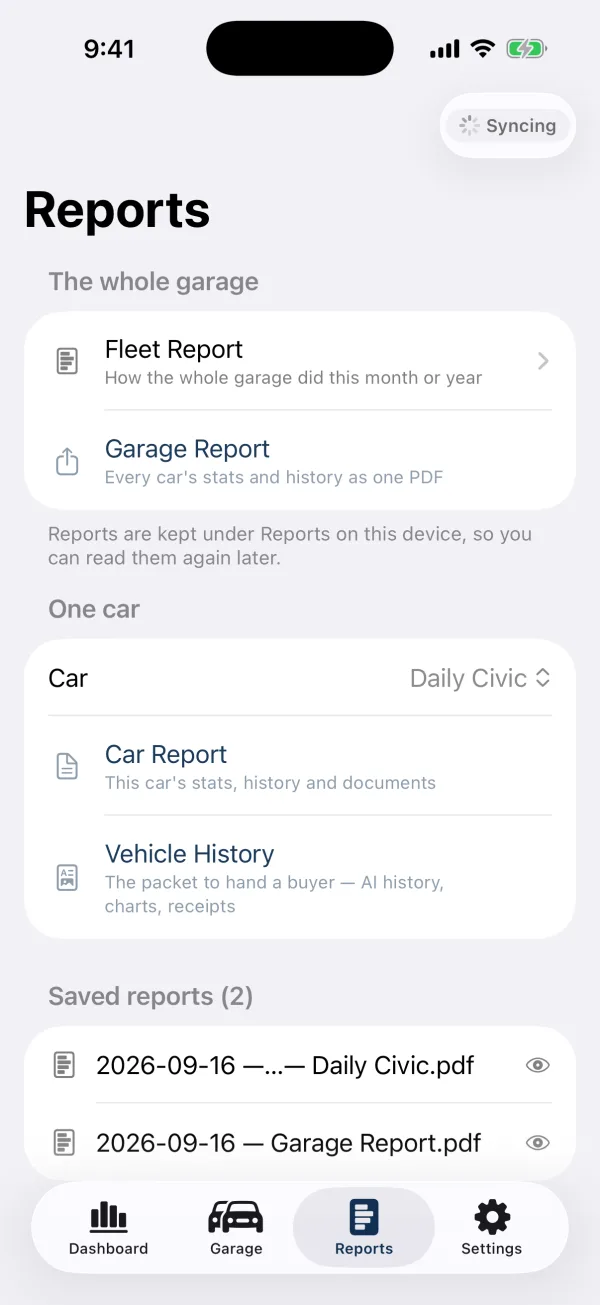
Reports
The Reports tab is where every report is made. There are four:
Reports, and the ones you've kept
Fleet report
For this month or this year: the numbers,
where it went (spending by category, with the number of entries behind
each total), and how much each car was driven and cost. A category that was
really one purchase — a set of tyres — is labelled as such rather than looking
like ongoing servicing.
AI key With AI set up, it also writes a
plain-English summary. Without one, Save the Numbers as a
Report keeps the figures on their own.
Garage report
A multi-page PDF of the whole fleet: an overview page with fleet totals and
the miles-per-month chart, then a section per car with its stats and full
log.
Car report
One car's complete history as a PDF, with its charts, entries and a list of
its documents — the one to hand a mechanic.
Vehicle-history packet
The one to hand a buyer. It combines an AI-written history of the car
AI key, the charts that back it up, the service
record, the full log, photos, and the scanned receipts behind the work.
Because it's meant to leave your hands, it deliberately
leaves out:
What you paid for the car and what you sold it for
Title, registration and insurance documents, which carry policy numbers
and home addresses
Receipts filed under Insurance or Registration, for the same reason
All of that is still in the app and in the ordinary car report.
Saved reports
Every report you generate is kept. It's filed to a Reports
folder in your Google Drive (or on the device in on-device mode) and listed
under Saved reports. Tap one to read it again; press and hold to share
it, rename it, open it in Drive or delete it. Report names start with the date
— YYYY-MM-DD — what it is — which car — so the folder sorts in
order. Generating a report works offline and uploads when you're back
online.
Storage, sync and offline use
On this device
Everything stays in the app's own storage and goes into your normal device
backup. No account and no network are needed. It doesn't sync between devices;
iCloud sync for this mode is not available yet.
Google Drive
Your records live in a spreadsheet called Garage Buddy
with tabs for Cars, Transactions, Attachments, Reminders and Todos. You can
open it and edit it by hand: columns are matched by their header, so
reordering them or adding your own won't break anything.
Photos, documents and receipts go into a Garage Buddy
folder with a subfolder per car, and a Photo Album inside each. Generated
reports go in Reports, and — only if you turn it on —
scanned odometer photos go in Scan Review.
The app asks only for Google's drive.file permission,
which lets it see the files it created and nothing else in your Drive.
While the app is open it re-reads your data every 30 seconds, so a Mac
window left open picks up what you just logged on your phone. Pull down on
any list to refresh straight away.
Offline
In Google Drive mode your data is cached, so the app opens instantly and you
can read everything with no signal. Entries you log offline are queued and sent
when you're back online; a badge shows how many changes are waiting. New
attachments need a connection to upload. If Google access expires, queued
changes are kept and the badge offers to reconnect.
Moving your data
In Settings → Data:
Move Data to Google Sheets uploads your cars, entries,
photos and documents to your Drive. Nothing is deleted until the move has
finished.
Move Data to This Device copies everything onto the
device and signs out of Google. The spreadsheet and files stay in your Drive
as a snapshot.
Setting up AI
AI is optional and off until you add a key. Garage Buddy runs no servers
and has no AI account of its own: you use your own key, and pay your provider
directly. Set it up in Settings → AI.
Providers: Anthropic (Claude), Google (Gemini), or any
OpenAI-compatible service.
Models: a short list for each provider with a note on
what each is good at and a rough cost per scan — typically a fraction of a
cent to a few cents. Or enter any model ID yourself.
Keys are stored in the iOS Keychain and sent only to the
provider they belong to. Verify Key checks one works before
you rely on it.
Test Models runs the full odometer scan on one of your
own photos. Test All tries every model from every provider you have
a key for, plus on-device, and compares the reading, confidence and time
taken. Nothing is added to your log, but each AI run is billed to that
key.
What AI is used for: odometer, gas pump and receipt scans; naming documents
and extracting details from them; service interval suggestions; value
estimates; and the written parts of the fleet report and vehicle-history
packet. The privacy policy lists exactly what each one
sends.
Widgets, Siri and shortcuts
Home Screen widgets
Scan Odometer (small) — one tap to the camera
Upcoming Reminders (small or medium) — what's due
next
Fleet Snapshot (small or medium) — active cars, miles
and spend this month, and a mileage trend line
Siri, Spotlight and the Action Button
Two shortcuts are available without any setup:
Scan Odometer — “Scan odometer in Garage Buddy” or
“Log mileage in Garage Buddy”
Log Entry — “Log an entry in Garage Buddy”
Both show up in the Shortcuts app and Spotlight, and either can be assigned
to the Action Button.
Units
In Settings → Units:
Distance: miles or kilometres
Volume: gallons or litres
Economy: MPG, km/L, L/100 km or gal/100 mi
Units only change what's displayed. The spreadsheet always stores miles and
gallons, so switching never alters your data. Currency follows your device's
region, and dates are shown as YYYY-MM-DD.
iPad and Mac
The same app runs on iPad and on Apple Silicon Macs. On the Mac, chart text
is sized up for a desktop window, and reports open a normal save dialog.
Where there's no camera, choose or paste photos instead.
To see the same garage on several devices, use Google Drive mode and sign in
with the same Google account on each one.
On the web
web.garage-buddy.app is Garage
Buddy in a browser, for when you're at a computer without the app. It works
with the same Google Drive spreadsheet as the app: log a
fill-up in the browser and it shows on your phone, and the other way round.
Sign in with the Google account you use in the app.
It needs Google Drive mode. On-device data stays on the device that holds it,
so to use the web version, first move your data to Google in the app
(Settings → Data).
The web Dashboard
A car's page on the web
What it does
Most of the app, as of version 1.9.1:
The garage, each car's page, and the full log — add, edit and delete
entries, cars, reminders and to-dos
The Dashboard charts — Mileage, Total, Expenses and Economy, with the
same 1M to All ranges
The “Missed a fill-up” switch, and retiring sold cars
Receipts, documents and photos, including previous-owner records, with
Undo on delete
Units, and a 30-second refresh while the page is open
Offline use: your data is cached in the browser, and entries made with
no connection are sent when you're back online. Uploading files needs a
connection.
Reports: every report the app saved to Drive is listed
and can be opened, renamed or deleted. The web version also makes the fleet
report's numbers and a car report as printable pages — print, or save as
PDF.
Garage value: the app's estimates and garage total are
shown, and you can set your own value here.
Install it from your browser (“Add to Home Screen” or “Install app”) and
it opens in its own window.
What stays in the app
Anything that uses AI. The web version never calls an
AI provider, so your API key never goes into a browser. Value estimates,
document reading, service interval suggestions, the written fleet summary and
the vehicle-history packet are made in the app; whatever they save to Drive
then shows up on the web.
Photo scanning. Odometers, pumps and receipts are typed
on the web.
Reminder notifications. Reminders still show on the
Dashboard and each car's page, marked due soon or overdue.
Widgets, Siri and the Action Button.
How it handles your data
Like the app, the web version has no server of its own. The page signs in
with Google in your browser and reads and writes your spreadsheet directly. It
asks for the same narrow drive.file permission. Google's access
token is kept only in memory and never saved; the browser remembers your email
address so signing in again is quicker, and caches your garage so it opens
instantly.